Xplova E5 Real Operation (vol 2)
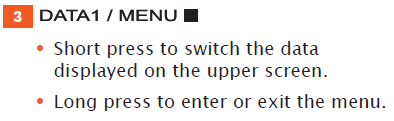
On E5 screen, user can get all data via “Data1/Menu” or “Data2/ Bike”.
On upper screen( DATA1)
1) Short Press Data1/Menu It will performs Data1function. Short press Data1/Menu repeatedly to toggle the upper data display
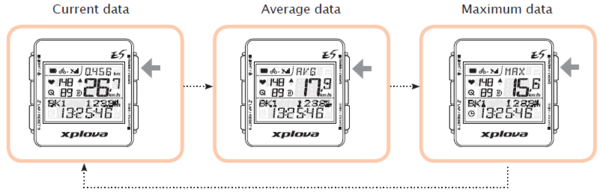
1.1)AVG average value of data, shows the average speed and heart rate cadence if heart rate / cadence setting is enabled.
1.2)MAX maximum of data, Shows the maximum speed achieved and heart rate cadence if heart rate / cadence setting is enabled.
1.3) If you do not see the AVG or MAX on upper screen, shows the current speed and heart rate/ cadence if heart rate / cadence setting is enabled.
2)Long Press Data1/Menu It will performs Menu function. About Menu setting, please refer to “Lesson I E5 Entry-setting” & “Lesson II Sensor-Pairing”. You can complete setting rapidly via the cloud tour.xplova.com.
Or You can also download the English user manual ,
You can refer to the English user manual from page 19 to page 29
This text only explain missing settings.
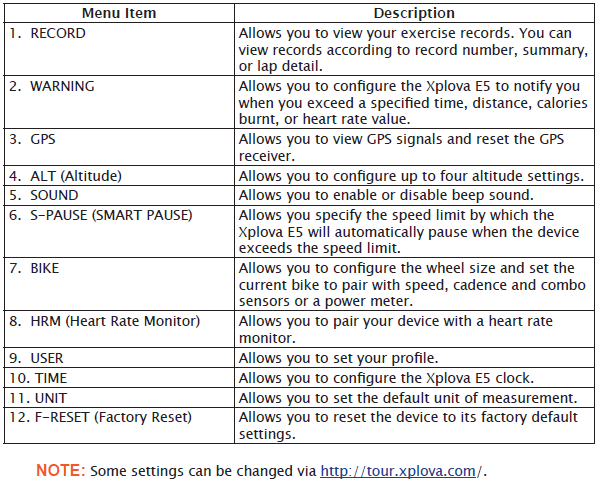
E5 cycling computer settings menu has 12 items, overview outline explains as follows
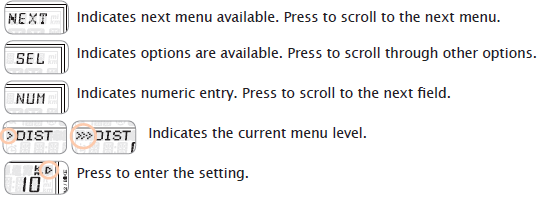
Depending on the current settings, the following screen terminologies may appear:
Record Menu
-------------------------------------------------------------------------------------------------------
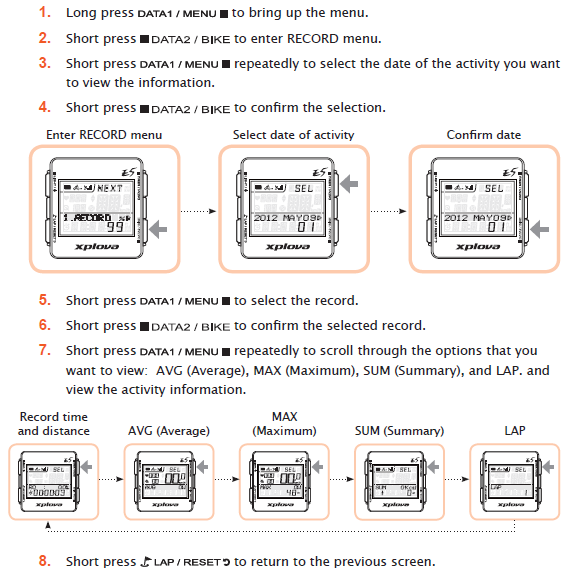
1)With the RECORD menu, you can view the record summary in an activity. When the remaining memory is less than 3%, the oldest record will be overwritten.
2) The record time depends on the enabled sensors..
If the recording content more simple, more hours can be saved,
2.1)Only
2.2)Record GPS + heart rate + rpm, E5 can store activities about 80 hours
2.3) Record GPS + heart rate + rpm + watt, E5 can store activities about 65
hours.
3) To view the record summary
Warning Menu
-----------------------------------------------------------------------------------------------------
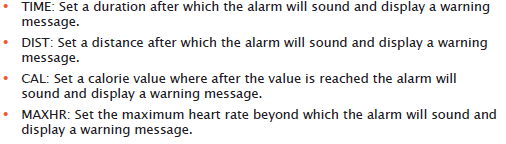
With the WARNING menu, you can set up alerts to help you stay within predefined ranges during your bicycle riding. You can program the Xplova E5 to warn you when you exceed set durations or distances, speed, calories, or heart rate.
There are 4 kinds of major warning
GPS Menu
-------------------------------------------------------------------------------------------------------
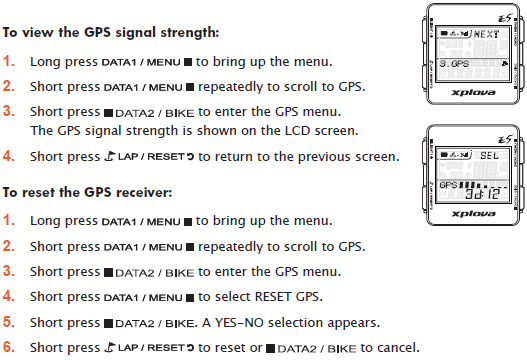
The GPS menu allows you to view the GPS signal strength and reset the GPS receiver.
NOTE: If the Xplova E5 cannot fix your current position, it is recommended to reset the GPS receiver.
On lower screen present the following icon
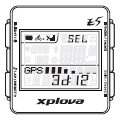
3D: 12 it mean that the satellite signal is very good
(3D: 5 or 3D: 6 the satellite signal is no problem)
As long as it shows the satellite signal is no problem, on lower screen will present " 3D " characters.
But if it presents
2D: 3
or 2D: 4
even NA: 0,NA: 1
needs to continue searching GPS or and resetting the GPS's positioning again.
Sound Menu
-------------------------------------------------------------------------------------------------------
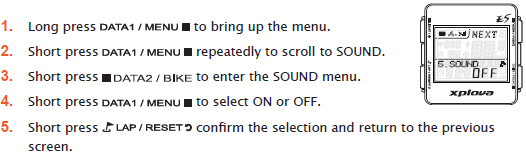
The Xplova E5 emits beep sounds when buttons are pressed or to indicate warnings, reminders, etc. The Sound menu allows you to enable or disable sounds on your device
Time Menu
----------------------------------------------------------------------------------------------------------------
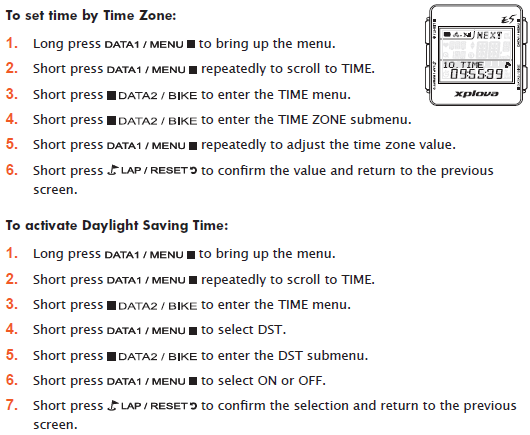
The TIME menu allows you to configure your device according to the time zone in your location and set up Daylight Saving Time (DST) if applicable.
F-RESET (Factory Rest) Menu
------------------------------------------------------------------------------------------------------
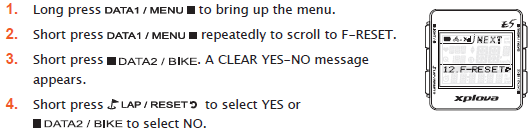
The F-RESET menu allows you to reset your device to its factory default settings
On lower screen (DATA2).
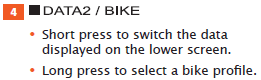
1) Short Press Data2/Bike It will performs Data2 function. Short press Data2/Bike repeatedly to toggle the lower data display
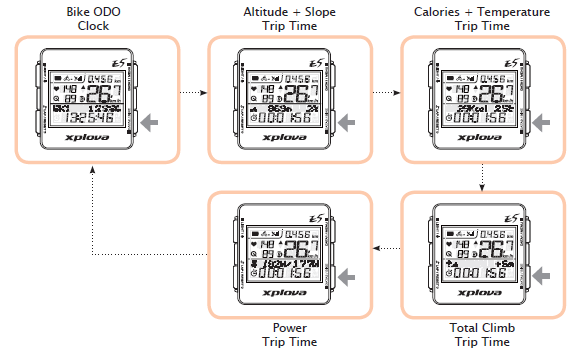
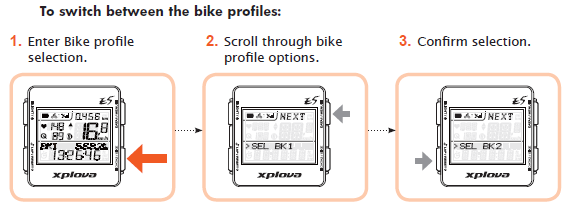
2) Long Press Data2/Bike It will performs Bike function.
You can configure up to three bike profiles on Xplova E5: Bike1, Bike2, and
Custom. For details, see “Bike Menu” on page 25.
下一則: [Xplova E5 Lecture] Xplova E5 Real Operation (vol 1)
限會員,要發表迴響,請先登入


