How to use E5 Cycling computer happily?
This article will be described in detail all E5 functions of each button and related screen displays.
You can also download the English user manual from following webpage,
You can refer to the English user manual from page 6 to page 29
E5 has a lot of special features. One is quite different from the traditional cycling computer, E5 don’t have “Start” button. As long as user turn on the power, E5will be able to start recording user activities. This creative concept can avoid the regret of a user forgets Click the Start button. Of course, you do not want your friend to see some records. You can upload to your personal information “My Activities” in advance. Then choose “Crop” or at the same time, “Keep the original activity data and create a new activity” to crop. This article will do in-depth introduction to E5 real operation.
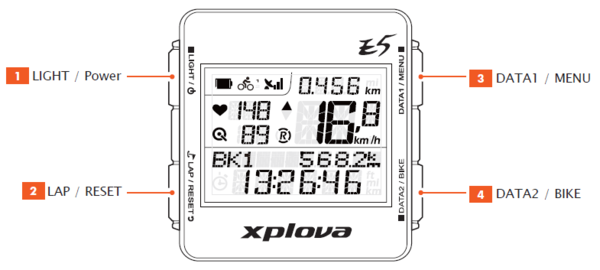
1) The four main buttons function, as shown ︰
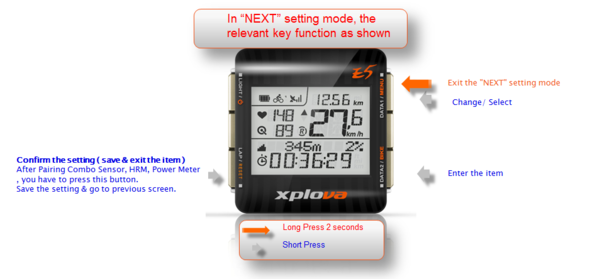
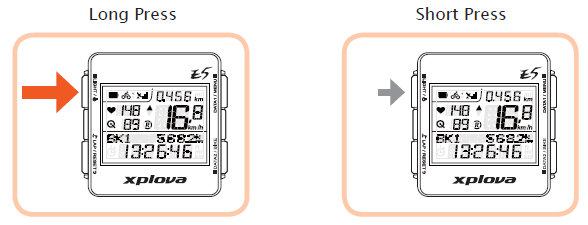
1)Short Press Press the button
2)Long Press Press the button for two seconds
3) Forced shutdown button When you find the E5 crashes (display stuck),
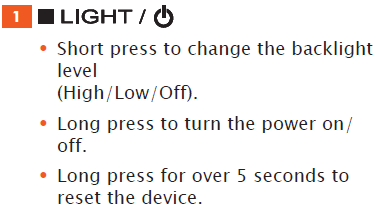
you can use the hardware “forced shutdown button”. Press the “LIGHT/POWER” button over 5 seconds, it will be forced to perform hardware shutdown command. Then the screen will disappear completely,
the activities will be stored before crash. When you upload activity records to tour.xplova.com "My activities", the activities before crash will exist and can upload.
4)Short Press LIGHT/POWER It will performs LIGHT (backlight select) function. Selectable brightness you want. That brightness will remain selected.
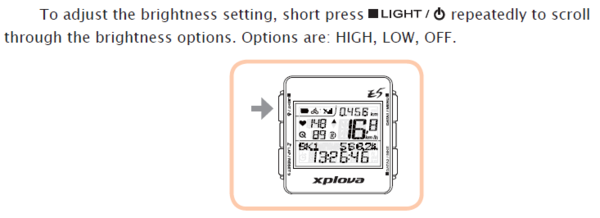
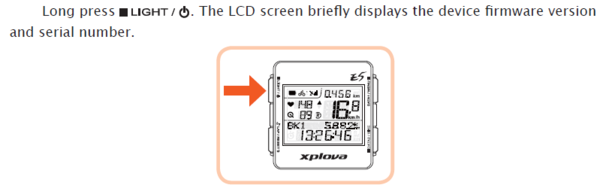
5) Long Press LIGHT/POWER It will performs Power (turn on/ turn off ) function.
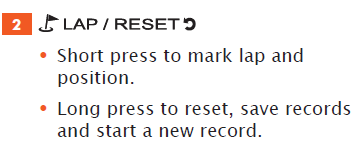
1) Short Press LAP/RESET It will performs LAP (Traditional laps, Activities segmentation, Location marked) function
1.1) There are three kinds of functions of LAP, the first kind is Traditional Laps(Especially applied to the track cycling, the first lap,
Second lap ... for viewing analysis for each lap performance)
1.2)The 2nd kind is Activities segmentation Split a route, for analyzing the performance of each section of the movement.
1.3)The 3rd kind is Location marked, if you think this point have a special meaning, just Short press Lap, when you edit the activities, plus some photos.
LAP will remind you the correct "position".
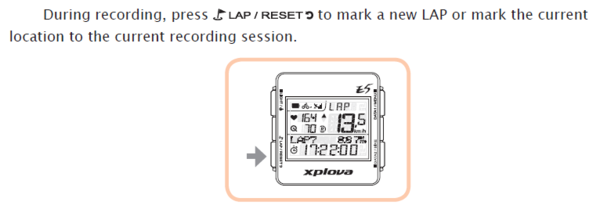
2) Long Press LAP / RESET It will performs RESET function
The long press will countdown 2 seconds and inform completed sound. Activities-recording will re-start. That is, each long press the figures are cumulative, such as R0, R1, R2, R3 ... increments and re-start another activities-recording.
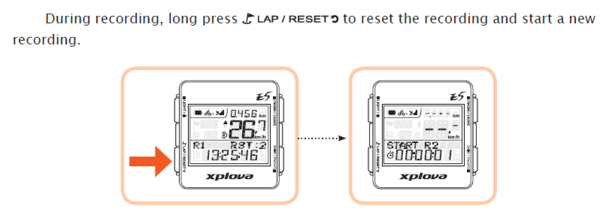
After long press RESET, mileage will be "return to zero" start record on E5 upper screen. But you will uploaded to the activity to the cloud, you will find E5’s all activities linked together until the E5 shutdown. For example, long press RESET three times, traditional cycling computer will produce 4 separate activities record, but on E5 device will only show one obvious route, there will be 3 additional starting point (red icon, R1, R2, R3…).
In this example, long press the RESET three times, so produce R1, R2, R3
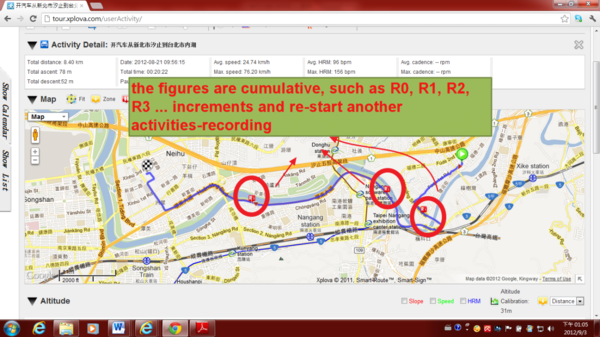
This concept is designed to make the record without interruption.
If you uploaded the activities, you want to get separate activities. You can use the “crop” tool to cut activities.
If you want the independent activities of the traditional cycling computer records, you must shut down and then boot. The new activities will exist independently.
My suggestion for the integrity of the records, do not shut down after boot.
If you wish to start another riding activities, as long as you long press the RESET. When you upload the activity record, just use cloud's “Crop "tool to help you easily to cut the starting point and end point.
下一則: [Xplova E5 Lecture] E5 Firmware Update(Software Update)
限會員,要發表迴響,請先登入


