Opencv Android: Load image from file
2015/09/21 11:21
瀏覽3,571
迴響0
推薦0
引用0
Read image from SD card.
1. 建立openCV project
2. import module openCVLib300 and 加入基本框架
3. remove TextView
4. 加入ImageView
| ImageView | |
| layout:width | match parent |
| layout:height | match parent |
| id | igv |
5. 加入SD read permission
在AndroidManifest.xml加入讀取SD卡的權限
xml version="1.0" encoding="utf-8"?>
xmlns:android="http://schemas.android.com/apk/res/android"
 package="com.example.mark_guo.loadimagefile" >
<uses-permission android:name="android.permission.READ_EXTERNAL_STORAGE" />
<application
 android:allowBackup="true"
 android:icon="@mipmap/ic_launcher"
 android:label="@string/app_name"
 android:theme="@style/AppTheme" >
6. add
public class LoadImageActivity extends Activity {
    ImageView igv;
 Mat imgRGBA, imgBGA;
8. add code in onManagerConnected().
private BaseLoaderCallback mLoaderCallback = new BaseLoaderCallback(this) {
    @Override
 public void onManagerConnected(int status) {
        switch (status) {
            case LoaderCallbackInterface.SUCCESS:
                File path = Environment.getExternalStoragePublicDirectory(Environment.DIRECTORY_PICTURES);
 Toast.makeText(LoadImageActivity.this, path.toString(), Toast.LENGTH_SHORT).show();
 Log.d("LoadImageFromFile:", path.toString());
 String filename = path.toString()+ "/"+ "xmen.jpg";
 imgBGA = Imgcodecs.imread(filename);
 if (imgBGA.empty()) {
 Toast.makeText(LoadImageActivity.this, filename, Toast.LENGTH_SHORT).show();
 } else {
 igv = (ImageView) findViewById(R.id.imageView);
 imgRGBA = new Mat(); //RGBA format
 Imgproc.cvtColor(imgBGA, imgRGBA, Imgproc.COLOR_BGR2RGBA);
 Bitmap bm = Bitmap.createBitmap(imgRGBA.cols(), imgRGBA.rows(),Bitmap.Config.ARGB_8888);
 Utils.matToBitmap(imgRGBA, bm);
 igv.setImageBitmap(bm);
 }
                break;
 default:
                super.onManagerConnected(status);
 }
    }
};
7. build and run
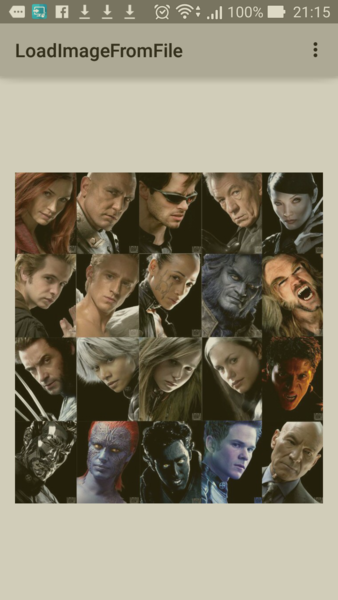
8.
1). 注意load image部分,不能在onCreate()做,因為openCV 還沒有initialization.
2). 這裡沒有辦法取得external storage image file (SD card).
透過Environment.getExternalStoragePublicDirectory(Environment.DIRECTORY_PICTURES);取得的路徑是storage\emulated\0\Pictures指向internal storage的Pictures folder.
9. 完整的source code
LoadImageActivity.java
package com.example.home.loadimagefromfile;

import android.app.Activity;
import android.graphics.Bitmap;
import android.os.Bundle;
import android.os.Environment;
import android.util.Log;
import android.view.Menu;
import android.view.MenuItem;
import android.widget.ImageView;
import android.widget.Toast;

import org.opencv.android.BaseLoaderCallback;
import org.opencv.android.LoaderCallbackInterface;
import org.opencv.android.OpenCVLoader;
import org.opencv.android.Utils;
import org.opencv.core.Mat;
import org.opencv.imgcodecs.Imgcodecs;
import org.opencv.imgproc.Imgproc;

import java.io.File;

public class LoadImageActivity extends Activity {
    ImageView igv;
 Mat imgRGBA, imgBGA;
 private BaseLoaderCallback mLoaderCallback = new BaseLoaderCallback(this) {
        @Override
 public void onManagerConnected(int status) {
            switch (status) {
                case LoaderCallbackInterface.SUCCESS:
                    File path = Environment.getExternalStoragePublicDirectory(Environment.DIRECTORY_PICTURES);
 Toast.makeText(LoadImageActivity.this, path.toString(), Toast.LENGTH_SHORT).show();
 Log.d("LoadImageFromFile:", path.toString());
 String filename = path.toString()+ "/"+ "xmen.jpg";
 imgBGA = Imgcodecs.imread(filename);
 if (imgBGA.empty()) {
                        Toast.makeText(LoadImageActivity.this, filename, Toast.LENGTH_SHORT).show();
 } else {
                        igv = (ImageView) findViewById(R.id.imageView);
 imgRGBA = new Mat(); //RGBA format
 Imgproc.cvtColor(imgBGA, imgRGBA, Imgproc.COLOR_BGR2RGBA);
 Bitmap bm = Bitmap.createBitmap(imgRGBA.cols(), imgRGBA.rows(),Bitmap.Config.ARGB_8888);
 Utils.matToBitmap(imgRGBA, bm);
 igv.setImageBitmap(bm);
 }

                    break;
 default:
                    super.onManagerConnected(status);
 }
        }
    };
 @Override
 protected void onCreate(Bundle savedInstanceState) {

        super.onCreate(savedInstanceState);
 setContentView(R.layout.activity_load_image);


 }

    @Override
 public boolean onCreateOptionsMenu(Menu menu) {
        // Inflate the menu; this adds items to the action bar if it is present.
 getMenuInflater().inflate(R.menu.menu_load_image, menu);
 return true;
 }

    @Override
 public boolean onOptionsItemSelected(MenuItem item) {
        // Handle action bar item clicks here. The action bar will
 // automatically handle clicks on the Home/Up button, so long
 // as you specify a parent activity in AndroidManifest.xml.
 int id = item.getItemId();

 //noinspection SimplifiableIfStatement
 if (id == R.id.action_settings) {
            return true;
 }

        return super.onOptionsItemSelected(item);
 }
    public void onResume() {
        super.onResume();
 if (!OpenCVLoader.initDebug()) {
            //Internal OpenCV library not found. Using OpenCV Manager for initialization
 OpenCVLoader.initAsync(OpenCVLoader.OPENCV_VERSION_3_0_0, this, mLoaderCallback);
 } else {
            //OpenCV library found inside package. Using it!
 mLoaderCallback.onManagerConnected(LoaderCallbackInterface.SUCCESS);
 }
    }
}
AndroidManifest.xml
<?xml version="1.0" encoding="utf-8"?>
<manifest xmlns:android="http://schemas.android.com/apk/res/android"
 package="com.example.home.loadimagefromfile" >

 <uses-permission android:name="android.permission.READ_EXTERNAL_STORAGE" />
 <application
 android:allowBackup="true"
 android:icon="@mipmap/ic_launcher"
 android:label="@string/app_name"
 android:theme="@style/AppTheme" >
 <activity
 android:name=".LoadImageActivity"
 android:label="@string/app_name" >
 <intent-filter>
 <action android:name="android.intent.action.MAIN" />

 <category android:name="android.intent.category.LAUNCHER" />
 </intent-filter>
 </activity>
 </application>

</manifest>
activity_load_image.xml
<RelativeLayout xmlns:android="http://schemas.android.com/apk/res/android"
 xmlns:tools="http://schemas.android.com/tools" android:layout_width="match_parent"
 android:layout_height="match_parent" android:paddingLeft="@dimen/activity_horizontal_margin"
 android:paddingRight="@dimen/activity_horizontal_margin"
 android:paddingTop="@dimen/activity_vertical_margin"
 android:paddingBottom="@dimen/activity_vertical_margin" tools:context=".LoadImageActivity"><![CDATA[

    TextView android:text="@string/hello_world" android:layout_width="wrap_content"
        android:layout_height="wrap_content" />

    ]]>

    <ImageView
 android:layout_width="match_parent"
 android:layout_height="match_parent"
 android:id="@+id/imageView"
 android:layout_alignParentStart="true"
 android:layout_alignParentTop="true" />
</RelativeLayout>
build.gradle(Module:app)
apply plugin: 'com.android.application'

android {
    compileSdkVersion 23
 buildToolsVersion "23.0.0"

 defaultConfig {
        applicationId "com.example.home.loadimagefromfile"
 minSdkVersion 21
 targetSdkVersion 23
 versionCode 1
 versionName "1.0"
 }
    buildTypes {
        release {
            minifyEnabled false
 proguardFiles getDefaultProguardFile('proguard-android.txt'), 'proguard-rules.pro'
 }
    }
}

dependencies {
    compile fileTree(include: ['*.jar'], dir: 'libs')
    compile project(':openCVLibrary300')
}
你可能會有興趣的文章:


