


Swann dvr
手機app: Swann Security
開機設定畫面:
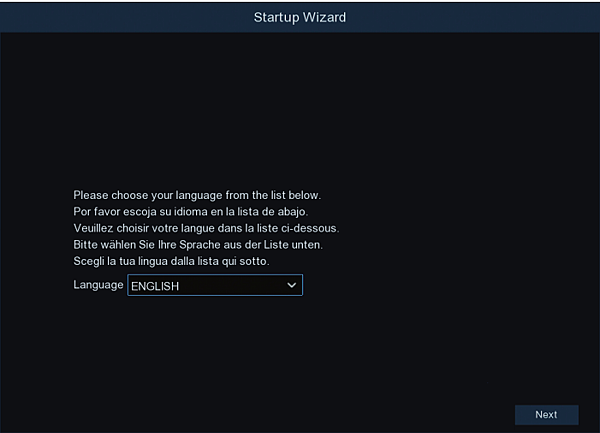
1. 電視顯示的第一個畫面為語言選擇。按一下並下拉選單
以選擇偏好語言,接著按一下「下一步」以繼續。
2. 若 DVR 是使用 HDMI 電纜連接至電視,畫面上會出現
通知,說明已偵測到支援電視最高解析度的畫面。按一下
「確定」以繼續(若未看到此訊息,則可於步驟 3 中選擇
顯示器解析度)。
3. 稍等一下,解析度即變更完成。按一下「確定」以確
認。此時將顯示歡迎的畫面,介紹您可在啟動精靈中設定
的選項。
按一下「下一步」以繼續。
1. The first thing you will see on your TV is the language selec-
tion screen. Click the drop down menu to select your preferred
language then click “Next” to continue.
2. If your DVR is connected to your TV using the HDMI cable,
a notice will appear on-screen stating that a screen that sup-
ports the maximum resolution of your TV has been detected.
Click “OK” to continue (if you don’t see this message, you can
select a display resolution in step three).
3.After a short moment,the resolution will change. Click “OK”
to confirm. A welcome screen will appear explaining the op-
tions that you can set within the Startup Wizard.
Click “Next” to continue.
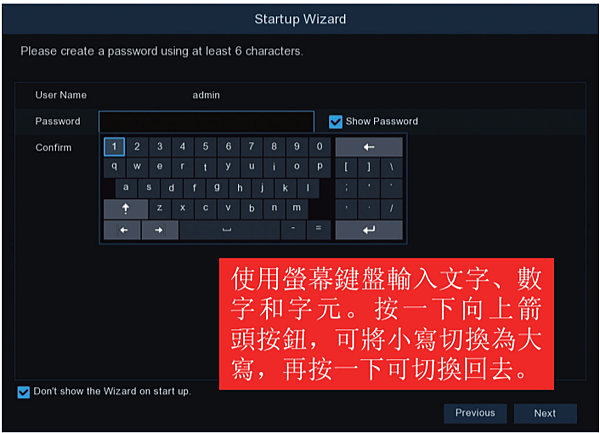
密碼:此步驟很簡單,您僅需為 DVR 設定密碼。密碼必
須至少包含 6 個字元,可混合數字和字母。
請使用您熟悉但他人不易知道的密碼。請於下方空白處寫
下您的密碼,以確保安全性。
啟用「顯示密碼」核取方塊以顯示您的密碼。
確認:再次輸入您的密碼並確認。
別忘了寫下您的密碼:__________________________
按一下「下一步」以繼續。
Password: This step is pretty straight forward, you just have to
give your DVR a password. The password has to be a minimum
of six characters and can contain a mixture of numbers and
letters.
Use a password that you are familiar with, but is not easily
known to others. Write down your password in the space pro-
vided below for safe keeping.
The “ShowPassword” checkbox is enabledto reveal yourpass-
word.
Confirm: Enter your password again to confirm.
Click “Next” to continue.
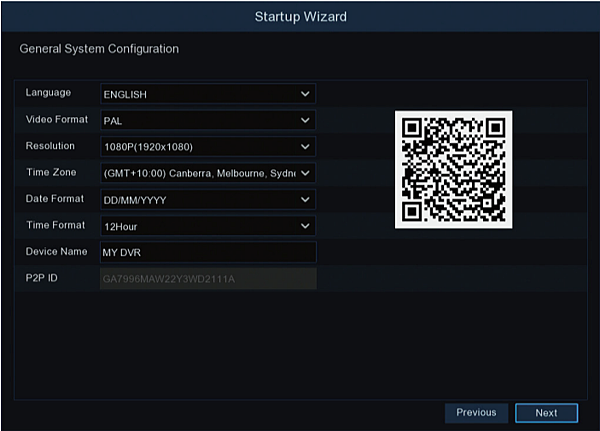
語言:提供多種語言選擇,請確認您的選擇。
影像格式:選擇您所在國家/地區的視頻標準。NTSC 適用
于美國、加拿大和臺灣。PAL 適用于澳大利亞、英國和紐
西蘭。
解析度:選擇適合您電視顯示器的解析度。
時區:選擇和您所在地區或城市一致的時區。
日期格式:選擇偏好的顯示格式。
時間格式:選擇顯示 12 小時制或 24 小時制的時間格
式。
裝置名稱:爲您的 DVR 設定相關名稱或保留目前顯示的
名稱。
按一下「下一步」以繼續。
Language: Confirm your language selection.
Video Format: Select the video standard for your country.
Resolution: Select a display resolution for your TV.
Time Zone: Select a time zone relevant to your region or city.
Date Format: Select a preferred display format.
Time Format: Select a 12-hour or 24-hour time format.
Device Name: Give your DVR a relevant name.
Click “Next” to continue.
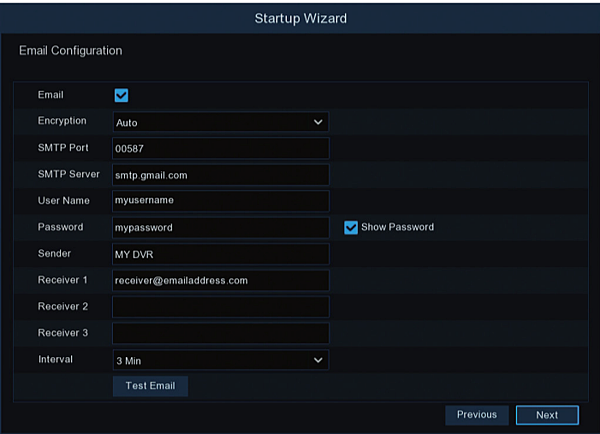
電子郵件:按一下核取方塊以啟用。
加密:將此設定常設為「自動」,以確保使用正確的加
密。
SMTP 連接埠:Gmail - 00587。Outlook - 00587。
SMTP 伺服器:Gmail 輸入 smtp.gmail.com。Outlook
輸入 smtp.live.com。
使用者名稱與密碼:輸入建立帳戶時的電子郵件使用者名
稱和密碼。按一下「顯示密碼」以顯示您的密碼。
寄件者:輸入電子郵件帳戶名稱或保留目前顯示名稱。
收件者:輸入欲收到電子郵件警告的電子郵件地址。
信件間隔:DVR 寄送電子郵件警告之後,必須間隔一段時
間才能寄送另一則警告。請合理調整。
測試電子郵件:按一下以驗證輸入的資料正確。
按一下「下一步」以繼續。
Email: Click the checkbox to enable.
Encryption: Leave this on “Auto”.
SMTP Port: Gmail input 00587. Outlook input 00587.
SMTP Server: Gmail smtp.gmail.com. Outlook smtp.
live.com.
UserName&Password:Inputthe email user name and
password for the account created.
Sender: Input a name for your email account.
Recipient: Input the email address for email alerts.
Interval: The length of time that must elapse after your DVR
sends an email alert before it will send another.
Test Email: Click to verify the information is correct.
Click “Next” to continue.
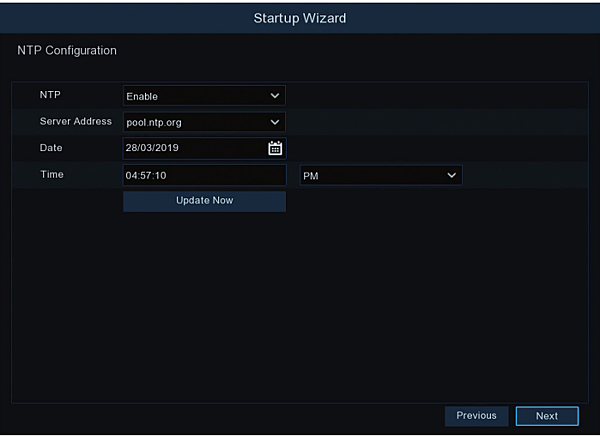
NTP(網路時間協定)功能讓您的 DVR 能自動將時鐘及
時間與伺服器同步。此功能可確保日期和時間隨時準確(
您的 DVR 將定期自動同步時間)。當然,此功能對安全
系統非常重要,而且它是 DVR 一項整體性的功能。
1. 按一下「立即更新」按鈕可立即自動將 DVR 的內部時
鐘與時間伺服器同步。
2. 畫面上將顯示訊息,說明時間已成功更新。按一下「確
定」以繼續。
按一下「下一步」以繼續。
The NTP (Network Time Protocol) function gives your DVR the
ability to automatically sync its clock with a time server. This
ensures that the date and time are always accurate (your DVR
will periodically sync time automatically). Obviously this is very
important for a security system and is an integral function of
your DVR.
1. Click the “Update Now” button to automatically synchronize
your DVR’s internal clock with the time server instantly.
2. A message will appear on-screen stating that the time has
been successfully updated. Click “OK” to continue.
Click “Next” to continue.
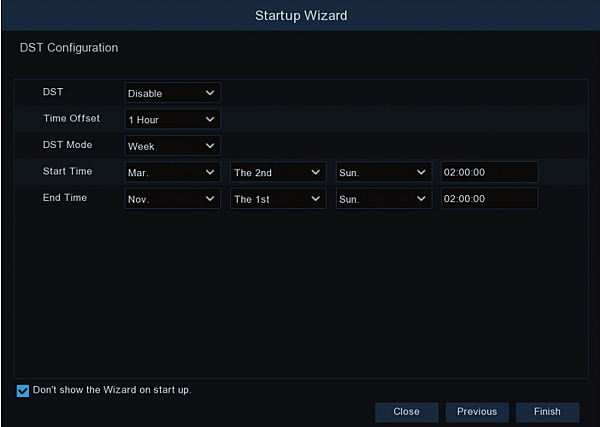
若夏令時間不適用於您的地區,請按一下「完成」按鈕,
接著按一下「確定」以完成啟動精靈。
夏令時間:按一下「啟用」以將您的地區套用夏令時間。
時間偏移量:選擇您時區的夏令時間以加快時間。在此乃
指世界協調時間 (UTC) 和當地時間的時間差異(以分鐘
爲單位)。
夏令時間模式:保留預設選項。請參閱使用手冊查看「日
期」模式的相關資訊。
開始時間/結束時間:設定夏令時間的開始和結束的時
間,例如:特定月份第一個週日上午 2 點。
按一下「完成」,接著按一下「確定」以完成啟動精靈。
If Daylight Saving does not apply to your locale, click the “Fin-
ish” button then click “OK” to complete the Startup Wizard.
DST: Click “Enable” to apply Daylight Saving to your locale.
Time Offset: Select the amount of time that Daylight Saving
has increased by in your time zone.
DST Mode: Leave the default selection. Please consult the in-
struction manual for information on “Date” mode.
Start Time/End Time: Set when Daylight Saving starts and
ends, for example 2 a.m. on the first Sunday of a particular
month.
Click “Finish” then click “OK” to complete the Startup Wizard.
